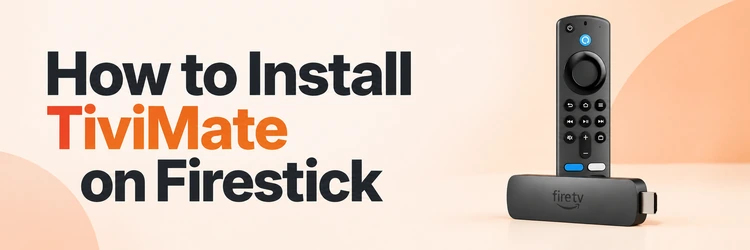
How to Install Stremio on Firestick?

Key Takeaway: To install Stremio on a compatible Fire OS stick, get Downloader from the Amazon Appstore, temporarily allow it to install unknown apps, and download the Android TV ARM APK from Stremio’s official download page. Stop if your stick runs Vega OS, because Android APKs are not compatible with that platform.
Learning how to install Stremio on Firestick starts with checking the operating system, not entering a random Downloader code. I verified the Stremio downloads and Amazon device specifications before writing these steps. Android-based Fire OS models can install the official Android TV APK, while newer Vega OS sticks require a separately supported native app.
This guide covers the safer Fire OS route, the correct APK family, first launch, updates, and common failures. Stremio is a media center that organizes sources through addons; it is not a subscription that automatically supplies every movie or channel. Use official software, choose lawful sources, and keep private account or addon details off public forums.
Disclaimer
This article provides general installation guidance, not a guarantee of device compatibility, security, availability, playback, or legal rights. Amazon and Stremio may change menus, supported models, files, and regional access. Sitewide promotional modules, if displayed, are separate from these instructions. Install only official software and use content sources you are authorized to access; a VPN, addon, or successful installation does not create viewing rights.
Read More
Why You Can Trust OTTWatchGuide?
OTTWatchGuide compared Stremio’s official Android TV downloads and Firestick instructions with Amazon’s Fire TV device records. The workflow distinguishes Android-based Fire OS from Vega OS, uses the official download domain, and avoids third-party APK mirrors or shortened codes. These are documentation-led instructions, not a claim that every Firestick generation was tested hands-on.
- Official Download: The APK route begins on Stremio’s own downloads page, not a mirror.
- Platform Check: Amazon’s device list identifies whether current sticks use Fire OS or Vega OS.
- Architecture Check: Amazon publishes the application binary interface for individual Fire TV Stick models.
- Safety Boundary: The guide does not provide unofficial addons, provider logins, or copyrighted streams.
Check Whether Your Firestick Is Compatible
Open Settings > My Fire TV or Settings > Device & Software > About and note the model and operating system. Amazon’s current records list some recent sticks, including Fire TV Stick HD and Fire TV Stick 4K generations released in 2025–2026, with Vega OS. Those models cannot install an Android APK through the method below.
Older and selected current devices still use Android-based Fire OS. Amazon publishes a searchable developer.amazon.com list with model numbers and operating systems. If the About screen or official specification says Vega OS, stop. Check the Amazon Appstore for a native Stremio release or use Stremio on another supported device.
| Device check | Fire OS model | Vega OS model |
|---|---|---|
| Android TV APK | Can be installed when unknown-app permission is available | Not compatible with Vega application packages |
| Developer Options | May expose Install Unknown Apps after the device-name gesture | Does not provide an Android sideload route |
| Stremio choice | Use the official Android TV ARM APK for typical 32-bit sticks | Wait for an official Vega version or choose another supported device |
| Safe decision | Continue only after confirming the model and OS | Do not use workarounds, modified files, or APK mirrors |
How to Install Stremio on a Fire OS Firestick
Step 1) Install Downloader from the Amazon Appstore
From the Fire TV home screen, choose Find or the search icon and look for Downloader. Open its Amazon Appstore listing, confirm the app identity, and select Get or Download. Do not install a similarly named utility from a website. Launch Downloader once so Fire OS can request the permissions needed for browsing and downloads.
Step 2) Reveal Developer Options if Necessary
Go to Settings > My Fire TV > About and highlight the device name. On Fire OS versions where Developer Options is hidden, press the remote’s center button seven times. Return one screen and look for Developer Options. Amazon documents this gesture for certain software versions. If the menu remains unavailable, recheck the model and OS before proceeding.
Step 3) Allow Downloader to Install Unknown Apps
Open Developer Options > Install Unknown Apps and switch Downloader on. Some older software calls this Apps from Unknown Sources. This permission bypasses the Appstore’s normal distribution check, so enable it only for this official file and disable it afterward. ADB debugging is unnecessary for this consumer workflow and should remain off.
Step 4) Open Stremio’s Official Download Page
In Downloader’s URL box, enter https://www.stremio.com/downloads. Check the spelling and HTTPS domain before continuing. Scroll to Stremio for Android TV, then find Manual install. Avoid search advertisements, third-party stores, modified APKs, and codes from unrelated tutorials. The official page shows the current release and supported processor builds.
Step 5) Choose the Android TV ARM APK
For typical Fire OS sticks, select the ARM APK, not the Android Mobile version. Amazon’s specifications list a 32-bit application binary interface for many Fire TV Stick models, even when their processor hardware is 64-bit capable. Choose ARM64 only when Amazon’s exact specification for your Fire OS device confirms a 64-bit app interface.
Step 6) Install, Open, and Remove the Temporary File
When Downloader finishes, the Fire OS installer should show Stremio and an Install button. Review the prompt, install the app, and choose Open. Then delete the downloaded APK from Downloader to recover storage. Return to Install Unknown Apps and turn Downloader off. The installed Stremio app remains available in your apps library.
Set Up Stremio After Installation
Sign in with an existing Stremio account, create one through the official flow, or use Guest mode when offered. A signed-in account can synchronize the library and addon choices across compatible devices. Do not enter credentials into a third-party configuration page. Use a unique password and review the current privacy terms before linking social accounts.
Open the addon catalog and start with official or clearly accountable services that provide content you may lawfully access. Community addons are operated independently, so installation does not prove safety, reliability, or licensing. The related guide on how to add addons to Stremio explains verification, permissions, synchronization, and removal in more detail.
Troubleshoot Common Installation Problems
First identify the stage that failed: Downloader, APK selection, Android installation, sign-in, addon loading, or playback. Restart the Firestick, confirm free storage, and test the network before downloading again. If a Vega OS stick rejects the APK, that is a platform mismatch, not a Downloader error. No code or alternate mirror can make it compatible.
| Problem | Likely cause | Safe next step |
|---|---|---|
| Install Unknown Apps is missing | Vega OS, hidden Developer Options, or managed device policy | Confirm the model and operating system in Amazon’s specification |
| Package will not install | Wrong architecture, incomplete download, low storage, or incompatible OS | Delete the file and retry the correct official Android TV build once |
| App opens but remote navigation is poor | Android Mobile build was installed instead of Android TV | Uninstall it and use the official Android TV ARM build |
| Stremio shows no playable source | Addon, region, account, rights, or service availability issue | Test an authorized official source and review addon status separately |
| Playback buffers or has no audio | Network, codec, device resources, or source failure | Restart, test another lawful source, and reduce competing network traffic |
Verdict
Installing Stremio is reasonable on a confirmed Fire OS stick: use Downloader from Amazon, temporarily permit unknown-app installation, and select the official Android TV ARM APK. Vega OS sticks need a native compatible release instead. After installation, remove the APK, restore the permission, sign in only through Stremio, and choose authorized sources with accountable operators.
- Stremio: Use the official Android TV download section and verify the correct ARM architecture before accepting the Fire OS installer prompt.
- Device boundary: Confirm Fire OS first; Vega OS cannot use the Android APK and should not be forced through unofficial workarounds.
- Content boundary: Installation supplies a media center, not universal viewing rights; evaluate each addon, account, operator, and source independently before playback.
FAQs
Is Stremio available in the Amazon Appstore?
Availability can change by device and region. Search the Amazon Appstore first. If no listing appears, compatible Fire OS sticks can use Stremio’s official Android TV APK.
Does Stremio work on every Firestick?
No. Android-based Fire OS models can support the APK route. Vega OS models require a native Vega application and cannot install Android APKs through Downloader.
Which Stremio APK should a Firestick use?
Most compatible Fire OS sticks use the Android TV ARM build because Amazon lists a 32-bit app interface. Check the exact device specification before choosing ARM64.
Why are Developer Options missing?
On some Fire OS versions, highlight the device name under About and press the center button seven times. If nothing appears, confirm the stick is not running Vega OS.
Is a Downloader code required?
No. Entering https://www.stremio.com/downloads makes the destination visible and avoids relying on a code that could change ownership or redirect elsewhere.
Is sideloading Stremio completely safe?
No installation method is risk-free. Use the official domain, inspect the installer, limit Downloader permission, delete the APK afterward, and keep the device updated.
Is Stremio free on Firestick?
The official app can be downloaded without an installation price. External services, supporter options, or content providers may have separate costs and terms.
Does Stremio include movies and live channels?
Stremio organizes metadata and sources through addons. It does not automatically grant access to every title or channel, and availability depends on lawful providers.
Can Stremio addons be installed on another device?
With the same account, supported addon choices can synchronize across compatible Stremio apps. Configure complex options on a desktop when easier input is helpful.
How do I update a sideloaded Stremio app?
Return to the official downloads page, verify the newer Android TV build, temporarily enable Downloader installation, and install it over the current version when supported.
Why does Stremio show no streams after installation?
Installation and source availability are separate. Check the account, addon purpose, operator status, region, and viewing rights; avoid random mirrors or credential requests.
Can a VPN make unofficial content legal?
No. A VPN changes network routing, not licensing or permission. Use content you are entitled to access under applicable laws and provider terms.