How Does Roku TV Work? Beginner’s Guide

Key Takeaway: A Roku TV is a television with Roku OS built in, so its Home screen brings streaming apps, free programming, antenna channels, and connected HDMI devices into one interface. Follow Roku’s official setup guide, use a free Roku account for activation, and remember that paid streaming subscriptions are separate purchases.
Understanding how Roku TV works is easier when you separate the television, Roku OS, and streaming services. The screen and tuner come from Roku or a partner manufacturer, while Roku OS organizes apps, search, settings, and inputs. I explain each layer so a first-time owner knows what internet access changes and what remains ordinary television.
A Roku TV can stream through apps, receive local broadcasts through an antenna, and display consoles or cable boxes through HDMI. Setup requires power, a remote, a network, and a free Roku account. Features vary by model, country, app, and software rollout, so this guide identifies the checks that matter before relying on any option.
Disclaimer
This guide provides general setup, privacy, accessibility, subscription, and lawful-use information rather than technical, legal, or purchasing guarantees. No sponsored placement was supplied. Roku OS, menus, apps, advertising, prices, device compatibility, and regional availability can change after September 14, 2026. Use official services and content you are authorized to access; privacy tools do not create viewing rights. Confirm model-specific ports and hardware support with the television manufacturer before buying accessories or attempting an irreversible factory reset.
Why You Can Trust OTTWatchGuide?
OTTWatchGuide reviewed Roku-controlled setup, account, networking, app, Live TV, mobile, casting, privacy, update, accessibility, and troubleshooting documentation accessed September 14, 2026. The guide distinguishes platform features from television hardware and third-party subscriptions. It does not claim hands-on testing, measured performance, universal app availability, or identical menus across every Roku TV brand, model, region, and software rollout.
- Primary Documentation: Roku support and policy pages ground key claims.
- Model Boundaries: Ports, panels, remotes, and networking vary by television.
- Cost Clarity: Free activation is separated from hardware and paid services.
- Evidence Limits: No hands-on or performance result is claimed.
What Is a Roku TV, and How Does It Work?
A Roku TV is a smart television that runs Roku OS internally. Unlike a Roku Streaming Stick or player, it needs no separate HDMI streaming device. Roku makes some television lines and licenses its operating system and reference designs to manufacturers such as TCL, Hisense, and Philips. The panel, ports, speaker system, and warranty still depend on the maker.
Roku OS supplies the interface between the remote and several content sources. It launches streaming apps over the internet, displays antenna broadcasts through the built-in tuner, and switches to devices connected through HDMI or other supported inputs. Search can identify viewing options, but each app controls its own catalog, account, subscription, advertisements, playback rules, and regional rights.
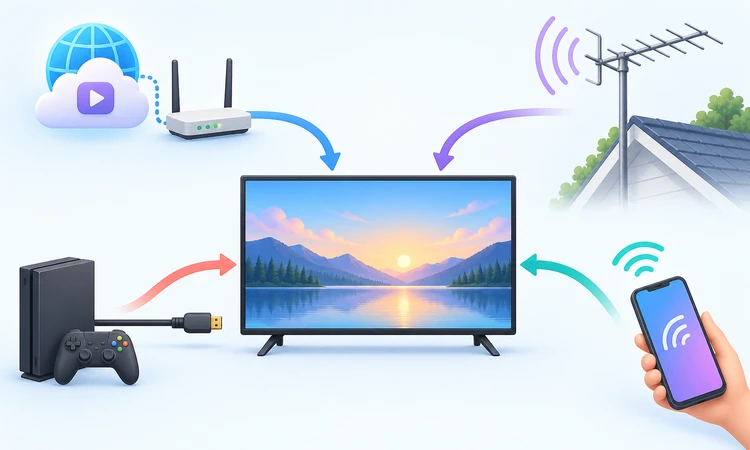
Think of the Home screen as a source selector rather than a subscription package. Opening an app starts that provider’s software, choosing Live TV opens antenna or supported streaming listings, and selecting HDMI displays external hardware. Pressing Home returns to Roku OS, so separate services share one television without becoming one product.
| Part or connection | What it does | What beginners should verify |
|---|---|---|
| Roku OS | Runs Home, Store, search, settings, and apps | Menus and rollouts vary by country and version |
| Internet connection | Streams, downloads, activates, and updates | Check supported Wi-Fi or built-in Ethernet |
| Roku account | Links devices, apps, preferences, purchases, and PINs | Free; payment details are optional for purchases |
| Antenna input | Receives local over-the-air stations | Reception requires a suitable antenna and channel scan |
| HDMI inputs | Connects consoles, cable boxes, players, and audio gear | Ports, formats, and cables vary by model |
How to Set Up and Activate a Roku TV
Step 1: Place the TV and Connect Essential Cables
Set the television on a rated stand or correctly installed wall mount, leaving ventilation space specified by its manufacturer. Attach power and insert fresh remote batteries. Connect HDMI sources to labeled ports and use the ARC or eARC port for a compatible soundbar when appropriate. Do not force cables or assume every HDMI input supports identical formats.
Step 2: Choose Language, Location, and Network
Turn on the TV and follow the onscreen prompts. Select the correct country because app availability, search, voice, Live TV, and privacy choices can differ. Choose Wireless and enter the case-sensitive Wi-Fi password, or choose Wired only when the television has recognized Ethernet hardware. A cable is often steadier, while Wi-Fi avoids another physical connection.
Step 3: Install Updates and Link a Roku Account
The TV checks for software during setup, may restart, and then asks for account activation. Create or sign into a free Roku account using the official flow at Roku-controlled domains. Roku says activation, account creation, and legitimate customer support carry no fee. A saved payment method can simplify purchases, but it does not make activation itself chargeable.
Step 4: Identify Inputs and Finish Personalization
Allow the TV to detect powered HDMI devices, then name each tile so Cable, Game Console, Blu-ray, or Soundbar is recognizable. Choose antenna setup if needed and scan for channels. Review optional privacy and Smart TV Experience choices instead of accepting them automatically. Finally, add only the streaming apps the household expects to use.
If the activation screen demands a support fee, lifetime channel payment, remote computer access, or software installation, stop. Roku warns that scammers imitate activation pages even though legitimate activation is free. Type the official address directly, confirm the displayed account email under Settings > System > About, and factory-reset a secondhand TV linked to an unknown account.
Navigate the Home Screen, Apps, Search, and Voice
Roku’s 2026 Home screen uses a collapsible left menu for destinations such as Home, Live TV, Sports, Subscriptions, Search, and Settings. Apps and television inputs appear in the Apps area, while Quick Access, shortcuts, genres, and personalized suggestions can occupy other rows. Roku rolls features out gradually, so another household may see a different arrangement.
To install an app, open Store, choose Apps, review its details, and select Add app or the displayed purchase option. Adding or removing an app changes the Roku account, so supported devices linked to that account generally receive the same change. Individual providers can still require their own login and may not transfer a session automatically between devices.
Highlight an app and press Star to move it or open available options. Roku Search can compare titles, actors, directors, and provider availability, but a result is not proof that the program is free or included with an existing plan. Voice search requires a compatible voice remote or the mobile app, and supported languages, countries, commands, and discovery answers vary.
- Home Button: Return to the Roku interface from any source.
- Directional Pad: Move among tiles, guides, settings, and keyboards.
- OK and Back: Open an item or return one level.
- Star Button: Open options for the highlighted item.
- Voice Button: Speak on compatible remotes; features vary by model.
- Provider Controls: Manage profiles, playback, billing, and controls inside each app.
Watch Free Content and Paid Streaming Services
Buying a Roku TV pays for the hardware, not for Netflix, Disney+, sports packages, cable service, rentals, or other premium entertainment. The platform includes paths to free, advertising-supported apps and The Roku Channel where available. Paid services require an existing subscription, a new signup through Roku, or a direct provider account, depending on the app and region.
| Viewing option | Typical cost relationship | Account and billing boundary |
|---|---|---|
| Roku account and activation | Free | Payment details are optional and never an activation charge |
| Free apps and Roku free programming | No subscription fee; advertising or eligibility may apply | Some viewing needs an account for personalization or events |
| Existing provider subscription | Already paid directly to the service | Install its app and sign in; billing follows the charging provider |
| Subscription purchased through Roku | Recurring price and terms shown before confirmation | Eligible plans appear at my.roku.com/subscriptions; cancellation depends on the provider |
| Rental or purchase | One-time displayed transaction | A PIN can reduce accidental purchases on the Roku account |
| Antenna television | Broadcast reception is free after equipment costs | No streaming subscription is required, but reception, guide data, and internet features differ |
Free does not mean ad-free, permanently available, or identical everywhere. Licensing can rotate movies, channels, and episodes. A free trial can convert to a recurring payment unless canceled under its terms. Before confirming any transaction, read the price, billing period, renewal date, refund policy, provider name, and whether management occurs through Roku or directly with the streaming service.
Use Live TV, an Antenna, or Cable
A Roku TV includes a television tuner for compatible over-the-air reception. Connect an HDTV antenna to Ant/Cable In, open Live TV, and follow the channel scan. If the tile is missing, use Settings > TV inputs > Live TV > Set up input. Reception depends on distance, terrain, building materials, antenna placement, amplification, local transmitters, and cable condition.
When connected to the internet, Live TV Channel Guide can combine supported antenna listings with free streaming channels in eligible countries. Without internet, antenna broadcasts can still work, but detailed program information and streaming rows may disappear. The guide does not display schedules from a separate cable or satellite box; use that provider’s guide and remote for its channels.
Cable and satellite receivers normally connect through HDMI. Name the input during Guided Setup, select its tile from Home, and wait for the signal. Press Home to return to Roku streaming. If the cable remote lacks expanded Roku control, keep both remotes available. Direct coax service and provider-specific tuning require guidance from the television maker or operator.
Connect Consoles, Players, and Sound Systems
Modern consoles, computers, disc players, and set-top boxes generally send audio and video through HDMI. Connect the device while both products are safely positioned, power it on, and select the detected input tile. For 4K, HDR, high refresh rates, or variable refresh features, confirm that the exact TV model, HDMI port, cable, and source all support the format.
ARC and eARC allow a compatible television to return audio through a designated HDMI port to a soundbar or receiver. CEC can share limited power, volume, and input commands between devices. These conveniences are not universal: manufacturers use different CEC names, some ports are disabled by default, and the original device remote may still be needed for detailed control.
Use the Roku Mobile App, Casting, and Screen Mirroring
The free Roku mobile app for supported iOS and Android devices can act as a remote, open the Live TV guide, accept voice input, and provide Headphone Mode on compatible setups. The phone and TV generally need the same local network for remote control. After a factory reset or first setup without networking, the app cannot replace the physical remote.
Casting sends a selected video or song from a compatible mobile app while the Roku device handles playback. Screen mirroring duplicates a compatible Android or Windows screen, including menus. AirPlay can stream or mirror from supported Apple devices to compatible Roku models. App rights, device models, software versions, network settings, and regional support decide which method actually appears.
Review every connection prompt. For Android or Windows mirroring, Roku can ask whether to allow, always allow, block, or always block the requesting device. AirPlay and many casting methods require the same network. Do not mirror private notifications in a shared room, and do not treat screen sharing as permission to copy or redistribute protected programming.
Manage Accounts, Household Controls, Privacy, and Ads
Each Roku device links to one Roku account at a time. Linking several devices to one account synchronizes installed apps and some Roku preferences or playback, but third-party services set their own profiles and simultaneous-stream rules. Separate Roku accounts can isolate app sets between televisions. Guest Mode temporarily separates visitor logins where supported and removes their added apps at sign-out.
A Roku PIN can restrict app additions and eligible Roku purchases, while parental controls for The Roku Channel apply only within specified Roku experiences. Other streaming apps need their own controls. Kid & Teen Mode, where available, can restrict approved apps, search, voice, casting, antenna access, and Roku Pay; third-party apps can still apply separate content, ad, and purchase behavior.
Roku’s July 2026 privacy policy covers accounts, devices, streaming interactions, search, voice, advertising, and other service data. The optional Smart TV Experience can use automatic content recognition to identify programs, advertisements, or games shown through antenna and connected devices. Disabling ACR stops that recognition going forward on the affected TV but does not eliminate other streaming or app data collection.
Updates, Accessibility, Regions, and Model Differences
Roku TVs check for software during setup, when powered on, and periodically, then download and install available system and app updates automatically. Manually check through Settings > System > Software update > Check Now after long disconnection or a new app installation. Some televisions support a USB update when internet access is unavailable, but the model-specific procedure must be followed carefully.
Accessibility support includes a screen reader on eligible Roku TVs, closed captions when supplied by the program, voice search, and additional audio or display options that vary by device and app. The screen reader can read Roku menus, but third-party interfaces and content metadata may behave differently. Test captions and audio description in the actual provider before depending on them.
Roku devices and services operate across North America, Latin America, the United Kingdom, and parts of Europe, while features and catalogs vary by country. Search, voice, Guest Mode, Kid & Teen Mode, The Roku Channel, subscriptions, Live TV Guide data, AirPlay, and apps can have different eligibility. Verify the television’s store country and model support before purchase or travel.
Troubleshoot Common Roku TV Problems
Start with the least destructive check. Confirm power, the selected source, cable seating, remote batteries, network status, and whether one app or every source is affected. Restart through Settings > System > Power > System restart when available; turning a Roku TV off with the remote may only enter standby. Preserve account details before any reset that removes information.
| Symptom | Likely cause or boundary | Safe next step |
|---|---|---|
| TV will not power on or has sound without picture | Outlet, power state, panel, backlight, or television hardware issue | Try a direct known-working outlet and manufacturer guidance before considering a reset |
| One HDMI device shows No Signal | Wrong input, loose cable, unsupported output format, or port mismatch | Select the named tile, reseat cables, try another compatible port, and lower source resolution |
| All apps buffer or fail | Weak network, router issue, service outage, or account connection problem | Check Settings > Network, restart TV/router, test another official app, and review provider status |
| Mobile remote cannot find the TV | Different network, isolation, disabled network access, or TV not connected | Put both devices on the same home network; use a physical remote for first-time networking |
| Antenna channels are missing | Loose coax, placement, interference, amplifier issue, or stale scan | Inspect coax and antenna power, reposition safely, then scan channels again |
| App is absent or will not update | Region, account link, software, device support, or provider removal | Check the Store, run Check Now, and confirm current support with the provider |
| TV freezes or restarts repeatedly | Temporary software fault, update problem, power issue, or failing hardware | Perform a system restart; reserve factory reset or Recovery Mode for official guided escalation |
A factory reset unlinks the TV, removes apps and account information, erases preferences, and requires Guided Setup again. It is not a routine first step. Record the Roku account, Wi-Fi credentials, app logins, PIN, and input setup before proceeding. For persistent restart loops, failed Recovery Mode, panel faults, or model-specific hardware problems, contact Roku or the listed television manufacturer.
Verdict
Roku TV works by placing streaming apps, antenna television, and connected inputs behind one Roku OS Home screen. It is approachable once each layer is understood: activation uses a free Roku account, internet enables apps and updates, and every paid provider remains separate. Model, country, privacy, household, and connection differences still deserve deliberate setup.
- Roku: Begin with the official Guided Setup, verify the account email, and reject anyone charging for activation or legitimate support.
- Content Budget: Treat free apps, antenna reception, hardware cost, rentals, and recurring subscriptions as separate choices before adding payment details.
- Household Setup: Configure PINs, app-specific profiles, privacy options, captions, inputs, and Guest or Kid modes for the actual viewers using the television.
FAQs
Does Roku TV need internet to work?
Internet is required for activation, apps, updates, downloads, and full guide data. HDMI devices and scanned antenna channels can work afterward, although smart features may be limited offline. Wired access depends on the television model. Keep a physical remote available because the mobile app cannot complete first-time networking by itself.
Is there a monthly fee for Roku TV?
Roku does not charge for account creation or activation. Hardware, subscriptions, rentals, purchases, internet, cable, and antenna equipment are separate. Many apps are free with advertising, while a paid service carries its own terms. There is no universal monthly Roku TV fee, and charges appear only for services or transactions selected.
Do Netflix or other subscriptions come with a Roku TV?
No paid streaming subscription is automatically included. Install the provider’s app and sign into an existing account, or subscribe through Roku or the provider. Trials can expire and renew, so read current terms before confirming. Provider promotions sometimes change, but they are temporary offers with separate eligibility and renewal conditions.
Can a Roku TV work like a normal television?
Yes. Antenna broadcasts and HDMI devices appear as tiles on the Home screen. Internet-dependent guide information and smart features may be reduced offline, but cable receivers, consoles, computers, and disc players remain separate physical sources. The Roku Home interface simply makes those traditional sources easier to name, select, and revisit.
Does a Roku TV need a separate Roku stick?
No. Roku OS is built in, so an external Roku player duplicates its main streaming purpose. A separate player may offer a newer feature, but it consumes HDMI and behaves as another input. Use one only when its hardware, software, travel, or compatibility benefit solves a specific household need instead.
Is a Roku account required?
Yes. A free Roku account activates and links the television while storing devices, apps, settings, PIN choices, and eligible purchases. Payment details are optional; legitimate account creation, activation, and support carry no fee. Use a unique password, verify the email address, and add a purchase PIN for shared household devices.
Can Roku TV use Ethernet instead of Wi-Fi?
Some models include Ethernet; others rely on Wi-Fi or approved hardware. A cable may steady the local link, but cannot raise plan speed, prevent outages, or guarantee buffer-free playback. Check the specifications before buying adapters because USB ports, network support, and compatible accessories differ widely between manufacturers and model years.
How do I watch local channels on Roku TV?
Connect a suitable HDTV antenna to Ant/Cable In, open Live TV, and scan for channels. Reception depends on local towers, terrain, building materials, antenna choice, cable condition, and placement. An internet connection adds detailed guide data and eligible streaming channels, but it cannot create an over-the-air signal unavailable at the location.
Can a cable box or game console connect to Roku TV?
Yes. Connect the source to a compatible HDMI port, power it on, and select the detected input tile. Confirm the television, port, cable, and source all support required formats such as 4K, HDR, or higher refresh rates. Use the source remote when the Roku remote cannot control its detailed functions.
Can a phone control Roku TV?
The free Roku mobile app can provide remote buttons, voice input, guide access, and compatible Headphone Mode. The phone and television generally must share the same network. If the TV is reset, offline, or not yet connected, keep the physical remote available because the mobile app may not discover it.
What is the difference between casting and mirroring?
Casting sends selected content from a compatible app while Roku handles playback; the phone can often do something else. Mirroring duplicates the Android or Windows device screen, including menus and notifications. Compatible Apple devices use AirPlay for streaming or mirroring. Support depends on the app, Roku model, network, software, and content rights.
Does Roku TV have user profiles?
Roku account behavior is mainly device- and household-oriented: one television links to one Roku account, and linked devices can synchronize apps. Individual streaming services may supply their own profiles and stream limits. Guest Mode or Kid & Teen Mode creates specialized device experiences where available, but neither replaces every provider’s account controls.
Does Roku TV show advertisements?
Roku can display Home-screen, screensaver, recommendation, and video advertising, while third-party apps control additional ads. Privacy and sensitive-ad preferences can change some Roku display advertising but do not remove every advertisement. Free streaming often relies on commercials. Paid subscriptions may still include ads according to the provider’s selected plan and content.
How does Roku TV handle privacy?
Roku collects account, device, search, streaming, advertising, and interaction information under its current policy. Optional Smart TV Experience settings can enable automatic content recognition for antenna and connected-input viewing. Disabling ACR limits that specific collection going forward, but Roku and independent apps can still process other online activity under separate policies.
How are updates and restarts handled on Roku TV?
Updates normally download automatically. Use Settings > System > Software update > Check Now for a manual check. Choose System restart for recovery; reserve factory reset because it unlinks the TV and removes apps and preferences. A restart preserves accounts and settings, making it the safer first response to many common temporary problems before trying destructive recovery.