How to Add Addons to Stremio (2026 Guide)

Key Takeaway: Use Stremio’s installation guide to open the addon catalog, review the exact service, and select Install. Desktop, web, and Android provide the clearest catalog controls. Other television and Apple devices may be easier to manage by signing into the same account on desktop or web, installing there, and allowing account synchronization to update the device.
Learning how to add addons to Stremio starts with one important distinction: an addon is usually a remote web service, not a conventional program copied onto the device. I recommend beginning with the built-in catalog, confirming who operates each service, and adding only the function needed, such as metadata, lawful streams, or subtitles.
The buttons and menu locations differ between desktop, web, Android mobile, Android TV, smart televisions, and Apple platforms. This guide follows current official instructions, explains the safe manual-manifest route, and shows how to remove or troubleshoot an addon. It does not recommend unlicensed sources, altered applications, anonymous repositories, or permission-bypassing workarounds.
Disclaimer
This article provides general setup, security, privacy, and lawful-use information rather than legal or technical guarantees. Stremio versions, addon catalogs, device interfaces, regional availability, provider terms, and prices can change after September 12, 2026. Use official software, recognized stores, trustworthy addon operators, and content you are authorized to access. A VPN, proxy, or debrid service changes neither viewing rights nor the legitimacy of a source, and it cannot guarantee anonymity, security, compatibility, or legality.
Why You Can Trust OTTWatchGuide?
OTTWatchGuide compared Stremio’s current installation help, download options, terms, privacy disclosures, addon protocol documentation, and recent platform guidance. The procedure separates controls supplied by Stremio from services run by independent developers. It also distinguishes installing an addon from receiving permission to watch a title, and it avoids claims based on unverified community lists or copied interface screenshots.
- Current Documentation: Official help and download pages were checked on September 12, 2026 for supported paths and labels.
- Responsibility Check: First-party and independently operated addons are treated as different trust, support, and data boundaries.
- Device Accuracy: Platform notes reflect current desktop, web, Android, television, and Apple availability rather than assuming identical menus.
- Lawful Scope: Instructions stop at legitimate catalog and manifest methods and never frame privacy tools as viewing permission.
What Stremio Addons Actually Do
Stremio uses addons to supply catalogs, metadata, streams, subtitles, or other supported resources. The official help center says most addons behave like websites consulted by the app, so selecting Install normally associates a remote service with the user account. That architecture can simplify setup, but the remote operator may still receive requests and configuration values.
Official addons are created or maintained by Stremio, and some protected core addons cannot be removed. Community addons are developed independently, even when Stremio displays them in a catalog. Community status does not automatically mean unsafe; it means the user must verify the operator, hosting domain, purpose, privacy terms, maintenance, and content authorization separately.
| Addon type | Who controls it | Installation approach | Main check before use |
|---|---|---|---|
| Official | Stremio or its designated service | Built-in catalog; some arrive protected | Confirm its purpose and any linked provider account |
| Community catalog | Independent developer or operator | Catalog listing with an Install button | Verify operator, domain, documentation, data handling, and rights |
| Configured community | Independent service with user-specific settings | Provider page creates a configuration or manifest URL | Protect tokens, review permissions, and keep the private URL secret |
| Private or developer manifest | Operator named by the user or organization | Add a verified HTTPS manifest URL manually | Confirm ownership, expected resources, hosting, maintenance, and removal path |
Before You Add an Addon
Install the current Stremio application from stremio.com or a recognized store reached independently. Sign in when synchronization across devices is useful, because addon choices are connected to the account according to official installation guidance. Guest mode can be suitable for limited use, but it cannot provide every account-based convenience.
Decide what function is missing before opening a catalog. Search for a specific need such as official metadata, a licensed provider, public-domain media, or subtitles. Avoid adding several overlapping services at once. A smaller addon set creates fewer data relationships, produces cleaner result lists, and makes failures easier to isolate without guessing which service supplied an entry.
| Device or platform | Best current installation path | Important difference |
|---|---|---|
| Windows, macOS, Linux | Puzzle icon, Addons catalog, then Install | Full search and catalog controls are easiest to review on a larger screen |
| Stremio Web | Puzzle icon or Settings, then Addons | Account synchronization helps carry choices to other signed-in apps |
| Android mobile | Main menu, Addons, choose catalog, then Install | Official help documents category pickers and direct install or uninstall buttons |
| Android TV or Google TV | Use the television catalog when available; otherwise manage through the same account on desktop or web | Remote navigation and app versions can expose fewer configuration controls |
| Samsung, LG, Apple TV, other smart TV apps | Prefer account synchronization from desktop or web when direct management is limited | Store model, region, and app edition affect available features and playback |
| iPhone or iPad | Use the current official web, limited, or full regional build as supported | Apple distribution and playback capabilities differ by edition and region |
How to Add Addons on Windows, macOS, Linux, or Web
1. Sign In to the Intended Stremio Account
Open Stremio and confirm the account from the profile or settings area. Signing in is especially helpful when the addon must appear on a television or phone later. Do not use a shared account for a private configuration token. If synchronization is unnecessary, understand what Guest mode omits before continuing with a device-only session.
2. Open the Addons Menu
Select the puzzle-piece icon in the upper-right area. Stremio’s official instructions also reference opening addon configuration through Settings in compatible interfaces. If the icon is absent, expand the window, check Settings, and confirm that the page is the installed client or official web app rather than a media detail or external provider page.
3. Choose the Relevant Catalog
Use the left-side categories or available catalog filters to separate official and community options. Begin with official services when they satisfy the need. A category is only a discovery aid, not a security review. Read the addon name, description, operator information, supported resources, and any configuration requirement before touching Install.
4. Search for the Exact Addon
Enter the exact addon name in the catalog search field and compare the displayed operator or domain with its official documentation. Similar names and copied icons can be misleading. If the developer, service purpose, or hosting address cannot be established, stop. Do not substitute a result merely because it appears first or promises more streams.
5. Review Details and Select Install
Open the addon card and examine its description, configuration link, supported content types, and provider requirements. Select Install only after those details match the intended service. Some addons open a legitimate configuration page before returning to Stremio. Treat every generated manifest address containing tokens as confidential, even when the visible page looks routine.
6. Verify the Installed State
Return to My Addons or the installed filter and confirm the service shows an Uninstall control. Search for one expected lawful catalog, metadata entry, or subtitle function without opening an ambiguous stream. If nothing changes, refresh the library or restart Stremio once. Repeated installation attempts can hide the underlying account, network, or service problem.
How to Add Addons on Android Mobile
On Android phones and tablets, open the three-line main menu, select Addons near the end of the list, and use the catalog pickers to move between official and community options. Stremio’s help center documents Install and Uninstall buttons on each addon. Screen width, orientation, and app version may move filters without changing their purpose.
Search for the exact service, review its details, and tap Install. If a configuration page opens in the browser, verify its HTTPS domain before entering any non-sensitive preference. Return to Stremio only through the expected link or system prompt. Reject requests to install another APK, browser extension, certificate, accessibility service, or unrelated “helper” application.
Official Android guidance notes that some addons may be difficult to install directly in the mobile application. Its documented workaround is to install the addon in a desktop application while signed into the same account, because desktop and Android addon choices synchronize. This is safer than enabling unknown sources merely to fix a catalog or account-level limitation.
How to Add Addons on Android TV and Smart TVs
Install Stremio from the device’s recognized store or the platform route listed on the official downloads page. Current listings cover Android TV and multiple television ecosystems, while model-year and regional requirements vary. Sign into the same Stremio account used on desktop or web. Allow synchronization to complete before assuming an addon is missing from the television interface.
When the TV app exposes an Addons area, use it for simple catalog installations and removals. For search-heavy review or a configured addon, complete the process on desktop or web instead, then reopen or refresh the TV app. Typing private manifest URLs with a remote increases mistakes and may expose tokens to keyboard history or on-screen observers.
For Apple platforms, check the official downloads page before choosing between the web experience, a limited store edition, or a full regional build. Availability can change by country and distribution method. Install the addon through the same signed-in account where possible, then confirm the Apple device receives the expected catalog before testing playback.
How to Add a Verified Manifest URL
A manually supplied addon normally uses a manifest endpoint ending in manifest.json or an installation link generated by the provider. Stremio’s addon protocol describes the manifest as a document that declares the service name, version, description, resources, content types, and capabilities. A valid format proves compatibility structure, not operator trust, data safety, or viewing rights.
7. Confirm the Manifest Source
Reach the developer or organization through a known official site or repository rather than a copied forum comment, shortened link, advertisement, or video description. Confirm that the HTTPS host, addon name, and documented purpose agree. Public source code can support scrutiny, but it does not prove that an unrelated hosted URL runs the reviewed code.
8. Inspect the Configuration Request
Read every field before generating a personalized link. Language, region, catalog order, or a provider-hosted authorization flow can be reasonable. Requests for an email password, recovery code, payment through an unknown wallet, disabled antivirus, installed certificate, or unrestricted cloud token are reasons to stop. Use the smallest permissions that deliver the stated function.
9. Add the URL Through Stremio
Open addon configuration from the puzzle icon or Settings and locate the Add-on Repository URL field when the current client provides it. Paste the complete verified manifest address and review the installation prompt. Select Install only when the displayed name and domain match. Never publish a customized URL in screenshots, chat, or support forums.
How to Choose a Safer Stremio Addon
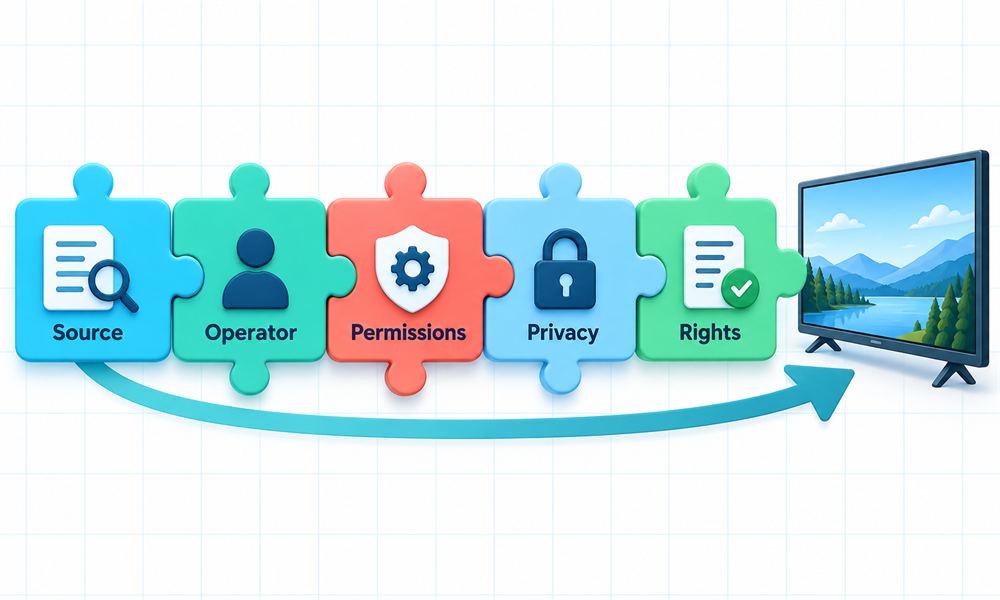
Start with accountability. A useful listing should identify its operator, explain its purpose, document the resources it supplies, and provide a stable support or repository route. Look for recent maintenance, clear configuration fields, and a privacy notice when accounts or tokens are involved. Popularity, a polished icon, or free access cannot replace those basics.
Then inspect content authorization. Prefer rightsholders, licensed streaming providers, public broadcasters, documented public-domain collections, authorized rentals, or personal files the viewer may use. Stremio’s terms require community developers to hold relevant rights and follow applicable law, but the platform also says it does not monitor community content. Users must evaluate the actual source.
Finally, minimize data and permissions. Addons are remote services, so their hosts may receive requests and whatever a configuration includes. Avoid giving unrelated services provider passwords or broad account access. Use recognizable OAuth screens where appropriate, protect private manifest tokens, and remove unused connections. A VPN, proxy, or debrid account adds another operator without creating rights.
How to Remove an Addon Cleanly
Open Addons, switch to My Addons or the installed view, find the service, and select Uninstall. Stremio notes that some protected official addons support core functions and cannot be removed. Confirm that the card no longer appears as installed. On another signed-in device, refresh or restart the app so account synchronization can apply the change.
Uninstalling from Stremio may not revoke an external provider authorization or invalidate a private token. Visit the provider’s genuine account dashboard, remove the connection, and rotate any exposed manifest credential. Delete saved URLs from passwordless notes, screenshots, browser history entries shared with others, or public support posts. Change reused passwords immediately, because they should never have been supplied.
If removal does not persist, check whether the device is signed into a different Stremio account or still offline. Remove the addon from desktop or web, wait for synchronization, then reopen the target app. Do not erase the entire Stremio account merely to fix one addon. Account deletion is a broader, potentially irreversible action with separate consequences.
Troubleshooting Addon Installation and Playback
First separate installation from delivery. An Install button can succeed while the remote service is unavailable, returns no result for a title, or supplies a format the device cannot play. Stremio’s support pages say it does not control community addons. Test a known lawful function, compare another signed-in device, and check the operator’s documented status before reconfiguring everything.
| Symptom | Likely cause | Safe next step |
|---|---|---|
| Install button does nothing | Stale client, account session, blocked popup, or temporary service failure | Update Stremio, sign in again, retry once, and check the verified operator status |
| Addon appears on desktop but not TV | Synchronization delay, different account, offline TV, or limited app edition | Confirm the same account, refresh, restart, and review the device edition |
| Addon disappeared from the catalog | Operator unpublished it, host failed, or catalog eligibility changed | Do not use a mirror; consult the verified developer or remove the stale configuration |
| No streams, metadata, or subtitles appear | The addon lacks that resource, has no result, or is unavailable | Confirm its declared purpose and test another authorized provider or official subtitle source |
| Wrong title or episode appears | Independent addon returned incorrect metadata or stream mapping | Stop playback, report it to the operator, and choose a verified alternative source |
| Configuration page asks for unusual access | Impersonation, excessive permissions, or unsafe operator design | Close the page, revoke any authorization already granted, and remove the addon |
| Uninstall does not sync | Another account, offline device, cached state, or protected official addon | Check account identity, reconnect, restart, and confirm whether the addon is protected |
If an addon still fails after one clean retry, capture only non-sensitive details: its public name, public host, device model, Stremio version, time, and exact error. Never include a private manifest URL, token, password, email address, or session information. Those details help distinguish a client bug from an independent service outage without creating another exposure.
Verdict
Adding an addon to Stremio is straightforward when the service is identifiable: open Addons, locate the exact listing, review its operator and purpose, select Install, and verify it under My Addons. Desktop or web account synchronization can simplify television and Android setup. The important work is confirming trust, permissions, privacy, compatibility, and content authorization before use.
- Stremio: Follow the official catalog procedure first, because it provides the clearest supported install and uninstall route across current desktop, web, and Android interfaces.
- Device Strategy: Configure complex addons on desktop or web, then synchronize the same account to televisions and phones with limited input or management controls.
- Safety Boundary: Install only accountable services for authorized content, protect configured manifest URLs, and remove both the addon and external authorization when finished.
FAQs
Are Stremio addons applications installed on the device?
Usually no. Stremio describes addons as remote web services rather than extra software copied onto the computer. The operator may still process requests and configuration data.
Are official Stremio addons safer than community addons?
Official addons have clearer first-party responsibility, but no service is guaranteed flawless. Assess a community addon’s developer, host, privacy, permissions, maintenance, source authorization, and removal options separately.
Why can’t I install an addon on Android?
Update the official app and retry once. Stremio recommends installing through desktop with the same account when direct Android installation fails, because addon choices synchronize between those apps.
Can addons be added to Stremio on a smart TV?
Some TV editions provide management; others work better through account synchronization. Configure on desktop or web, then refresh the television app. Playback still depends on the platform and supported formats.
Can a Stremio addon be installed with a manifest URL?
Yes. Confirm the host through official operator documentation and compare the prompt with the expected name. Keep personalized manifest URLs secret because they may contain tokens or identifiers.
Is every addon in the Stremio catalog legal to use?
No. Catalog placement cannot establish rights for every title or region. Verify the actual provider is a rightsholder, licensed service, authorized broadcaster, public-domain source, or another lawful source.
Does a VPN make an unofficial addon safe or legal?
No. A VPN changes routing, not operator trust or content rights. VPN, proxy, and debrid providers also add accounts, policies, logs, credentials, and possible failures.
Why does an installed addon show no streams?
The addon may lack stream resources, have no result, be offline, or face account or device limits. Confirm its declared purpose and operator status; avoid random mirrors.
How are Stremio addons removed?
Open Addons, select the installed view, find the service, and choose Uninstall. Protected official addons may remain. Revoke external authorization and rotate any exposed private manifest token.
What information should be checked before installing an addon?
Check the name, operator, HTTPS domain, purpose, resources, maintenance, privacy terms, requested permissions, content source, and removal route. Stop if the page asks for passwords, recovery codes, certificates, disabled protection, or unexplained payment.
For configured services, identify whether the generated URL contains a private token, record the ordinary account dashboard, and confirm how access can be revoked later before the addon receives another provider account authorization.